RAM vs Storage, Explained
Why your computer has both RAM and a hard drive, what makes them different, and why adding more RAM can make a sluggish machine feel new again.
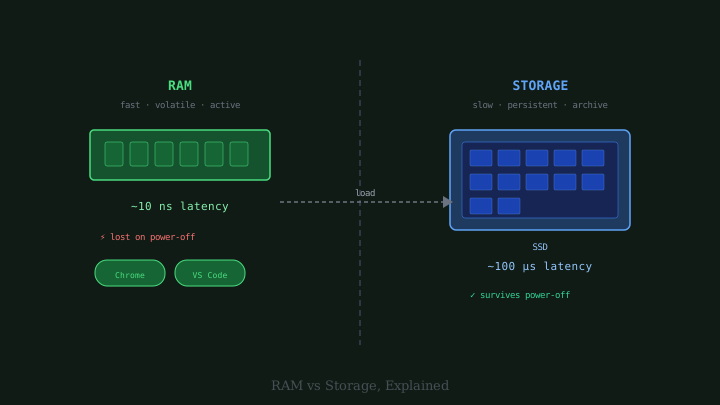
When people describe a computer’s specifications, they often rattle off numbers like “16 gigabytes of RAM and a 1 terabyte SSD.” Many people know, in a vague sense, that both of those things store data. But they are not the same thing at all, and understanding the difference explains a lot about why computers behave the way they do — why they feel fast or slow, why they need to “boot up,” and why closing unused programs can help.
A Useful Analogy
Imagine your work area as a physical desk. The desk surface itself is where you keep everything you are currently working on — the documents spread out in front of you, the pens you are holding, the reference materials you need right now. The filing cabinet in the corner of the room is where you store everything else: completed projects, archived files, things you do not need immediately but might want later.
RAM (Random Access Memory) is like the desk. It holds everything the computer is actively working with — the operating system processes running right now, the applications you have open, the documents or webpages you are viewing. RAM is extremely fast to read and write, but it is volatile: when the power is cut, everything on the desk is instantly gone. Close the lid of your laptop, and RAM retains its contents because the battery keeps trickling power to it. Pull the plug entirely, and it is wiped.
Storage — whether an SSD (solid-state drive) or an older hard drive — is the filing cabinet. It holds everything permanently: your operating system, all installed applications, all your photos and documents and downloads. It is much slower to access than RAM, but its contents persist when the power is off. This is why your computer can be turned off and turned back on, and all your files are still there.
Why Speed Differs So Much
The speed difference between RAM and storage is extreme, and it matters enormously in practice.
Reading data from modern RAM takes a matter of nanoseconds — billionths of a second. A solid-state drive, fast as it is compared to older hard drives, takes microseconds — thousandths of a millisecond. That might sound small, but relative to a CPU running at billions of cycles per second, even microsecond delays are significant. An SSD is roughly 50 to 100 times slower than RAM for typical reads.
Traditional hard drives (HDDs) with spinning magnetic platters are slower still. They have moving parts that must physically seek to the right location on the disk before reading, which introduces milliseconds of latency. For sequential reading of large files they are acceptable; for the rapid random-access reads that a busy operating system performs constantly, they are a bottleneck.
What Happens When You Run a Program
When you double-click an application icon, here is what happens:
- The operating system finds the application’s code in storage.
- It copies the relevant parts of that code from storage into RAM.
- The CPU reads and executes instructions from RAM — not from the original storage location.
The application’s code now lives in RAM while it is running. Any files you open while using the application are also loaded into RAM, so the CPU can access them quickly.
When you close the application, its code is removed from RAM. The data you were working with (if you saved) has already been written back to storage. If you did not save, that data — which existed only in RAM — is gone.
What Happens When You Run Out of RAM
If you have too many applications open at once, you can exhaust your RAM. At that point, the operating system has to make difficult choices. It cannot simply refuse to load more data; instead, it moves inactive pages of RAM content out to a special area on your storage drive called a swap file (on Windows) or swap space (on Linux/macOS).
This process is called paging or swapping. When the evicted data is needed again, it gets loaded back from storage into RAM, and something else gets swapped out. This allows the system to handle more data than fits in physical RAM, but it comes at a severe performance cost: instead of nanosecond RAM access, the system is performing microsecond or millisecond storage accesses. This is why a computer with very little RAM feels slow and its storage light seems to blink constantly — the system is perpetually swapping.
Adding more RAM eliminates or reduces swapping, which is often the single biggest speed improvement you can make to an older machine.
SSDs vs HDDs
Both SSDs and HDDs serve the same role — permanent storage — but they use different technology.
An HDD stores data magnetically on rapidly spinning disks (platters). A read/write head moves over the surface to read or write data. Because the head must physically move, accessing data in a different part of the disk takes time. HDDs are cheap per gigabyte, which makes them popular for large archival storage.
An SSD stores data in flash memory chips with no moving parts. Accessing any location takes the same amount of time regardless of where it is on the drive. SSDs are faster, quieter, lighter, more shock-resistant, and more power-efficient than HDDs, but they cost more per gigabyte.
Modern computers typically use SSDs for the main system drive where the operating system lives, because the speed difference is clearly felt in day-to-day use. Large external drives used for backups or media archives often remain HDDs because the lower cost per terabyte matters more than speed.
The Desk and Filing Cabinet Together
The reason computers need both comes down to the fundamental tradeoff between speed and permanence. Ideally, you would have an enormous amount of extremely fast, permanent storage — but current technology does not offer that combination at a price that makes sense for consumer products. Flash memory in SSDs is fast but expensive per gigabyte; RAM is extremely fast but volatile and expensive; HDDs are cheap and permanent but slow.
The solution is to use each for what it is best at: volatile, extremely fast RAM for active working memory, and permanent, slower storage for everything else, with the operating system managing the movement of data between them.
When a computer specification says “16 GB RAM, 512 GB SSD,” it is describing both sides of that equation: 16 gigabytes of working memory for running applications, and 512 gigabytes of permanent storage for files, programs, and the operating system itself.