Understanding Your Home Network
Modems, routers, IP addresses, DHCP, and NAT — what each piece of your home internet setup actually does, and how they fit together.
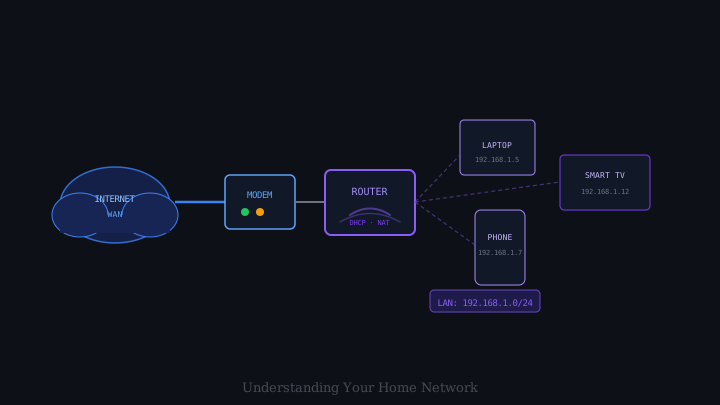
Home internet connections involve several pieces of equipment and several layers of technology that most people never need to think about — until something goes wrong. When the internet stops working, knowing what each component in your setup actually does makes troubleshooting far more effective than simply unplugging and replugging things at random. And even when everything is working, understanding the architecture helps you make better decisions about security, device placement, and network performance.
The Two Devices Most People Conflate: Modem and Router
Many homes have a single box provided by the internet service provider (ISP) that handles everything. But conceptually, and often physically, there are two distinct functions involved.
A modem (short for modulator-demodulator) connects your home to your ISP’s network. It converts the signal from your ISP — whether that arrives via a telephone copper wire (DSL), a cable television coaxial cable, or a fibre optic line — into an Ethernet signal that a router or computer can understand. The modem communicates with your ISP’s equipment and is assigned a single public IP address that represents your entire household to the wider internet.
A router connects the devices in your home to each other and to the modem. It manages the local network — assigning addresses to devices, directing traffic, and sharing the single public IP address from the modem among all your devices. Most home routers also contain a Wi-Fi access point, which is why people often call the whole box “the router” even when it is doing the modem’s job as well.
Your ISP’s box (sometimes called a gateway) typically combines both functions. If you are using your own router plugged into the ISP’s device, the modem function is in the ISP’s box; your router handles the local network.
IP Addresses: The Network’s Addresses
Every device connected to a network has an IP address (Internet Protocol address) — a numerical label that identifies it on that network, similar to a street address identifying a building.
There are two different address spaces at play in your home:
Public IP address: The single address assigned to your modem by your ISP. This is the address that websites and online services see when you connect to them. It represents your entire household, not any individual device. Your ISP may change this address periodically (a “dynamic” IP) or keep it fixed (a “static” IP, usually for a fee).
Private IP addresses: The local addresses your router assigns to each device on your home network. These are drawn from address ranges reserved for private use — commonly 192.168.0.x or 192.168.1.x, though 10.x.x.x and 172.16.x.x through 172.31.x.x are also private ranges. Your laptop might be 192.168.1.5, your phone 192.168.1.7, your smart TV 192.168.1.12. These addresses are invisible to the outside internet.
DHCP: Automatic Address Assignment
In the early days of networking, every device’s IP address had to be configured manually by a human administrator. DHCP (Dynamic Host Configuration Protocol) automates this. When a new device joins your network — your phone connects to Wi-Fi, a guest plugs in a laptop — it broadcasts a message saying, in effect, “I’m new here; can someone give me an address?” Your router (acting as the DHCP server) responds by assigning an available private IP address, along with other useful information: the address of the router itself (so the device knows where to send traffic destined for the internet), and the addresses of the DNS servers to use for looking up domain names.
The assigned address is typically a lease for a defined period — often 24 hours. After that, the device renews the lease (usually automatically and invisibly) or gets a new address. This dynamic assignment means devices get addresses automatically when they join and free up those addresses when they leave.
If you have ever set a device to a “static IP” on your home network, you were overriding this process — telling a specific device to use a particular private address that will not change, rather than accepting whatever DHCP assigns.
NAT: Sharing One Public Address Among Many Devices
Your household has one public IP address from the ISP but potentially dozens of devices. How do all those devices communicate with the internet simultaneously? Through a technique called NAT (Network Address Translation).
When your laptop sends a request to a web server, it goes to the router. The router substitutes your laptop’s private address (e.g., 192.168.1.5) with the household’s public address in the outgoing packet, and records which device sent the request in an internal table. When the web server responds, the response arrives at the public IP address. The router looks up its table, sees that this response belongs to 192.168.1.5, and forwards it to your laptop.
From the web server’s perspective, every request from your home appears to come from a single IP address. The router’s NAT table keeps track of which response goes to which device. This is why your public IP address is associated with your household, not with your individual devices.
DNS: The Internet’s Phone Book
When you type yugmify.com into your browser, your device does not inherently know the IP address of the server that hosts that site. It asks a DNS server (Domain Name System) to look it up.
Your router, via DHCP, tells each device the address of one or more DNS servers to query. These might be servers operated by your ISP, or you may have configured them to use a public service. When your browser needs to resolve yugmify.com, it asks the DNS server for the IP address corresponding to that domain name. The DNS server responds — usually in milliseconds — with an IP address, and your browser connects to that address.
Without DNS, you would need to remember IP addresses like 93.184.216.34 instead of domain names. DNS is the translation layer that makes the internet navigable by humans.
Diagnosing Common Problems
Understanding the architecture makes basic troubleshooting more systematic.
Can’t reach any website but can reach local devices? The problem is probably between your router and the internet — the modem’s connection to the ISP, or the ISP’s network itself. Try pinging a known IP address (ping 8.8.8.8) to check if internet connectivity exists without DNS. If that works but websites don’t load, DNS is the problem. If that doesn’t work either, the issue is upstream of DNS.
One device can’t connect but others can? The problem is likely local to that device: its network adapter, its IP configuration, or its Wi-Fi driver. On the device, try releasing and renewing the IP address (using ipconfig /release and ipconfig /renew on Windows, or toggling Wi-Fi off and on).
Slow internet only on Wi-Fi, but fast on a wired connection? The problem is in the wireless link between your device and the router — distance, interference, the number of other devices on the same Wi-Fi channel, or the age of the router’s radio hardware.
Keeping Your Network Secure
Your home router is a significant security boundary. A few basic practices make a significant difference:
- Change the router’s administrative password from the default. Default credentials are publicly documented and easily guessed.
- Keep the router’s firmware updated. Manufacturers release updates to patch security vulnerabilities.
- Use WPA2 or WPA3 for Wi-Fi authentication. Avoid WEP, which was broken decades ago.
- Consider whether any devices — smart home gadgets, for example — need access to your main network where your computers and phones live, or whether they could be isolated on a guest network.
Your home network is the infrastructure beneath everything else you do online. A basic understanding of how it works rewards you every time something goes wrong — or every time you want to make it work better.