A Beginner's Guide to Backing Up Your Data
The 3-2-1 rule, what to back up, how often, and how to verify that your backups actually work before you need them.
Hard drives fail. Laptops are stolen. Phones are dropped into toilets. Files get accidentally deleted. Ransomware encrypts everything on a machine and demands payment to unlock it. These events happen to ordinary people with ordinary computers far more often than most people expect, and the difference between “devastating loss” and “minor inconvenience” almost always comes down to whether a good backup exists.
Most people know they should back up their data. Far fewer actually do it — and many who think they do, have backups that would fail when most needed. This guide covers the principles behind effective data backup without recommending any specific product.
What Is a Backup, Really?
A backup is a separate copy of your data, stored somewhere that will survive whatever event might destroy the original. “Separate” is the key word. Saving a second copy of a file in a different folder on the same hard drive is not a backup — if the drive fails, both copies go with it. Uploading files to a cloud service while keeping the original only on your local drive is closer, but still incomplete if you lose access to the cloud account.
A genuine backup can restore your data independently of the original.
The 3-2-1 Rule
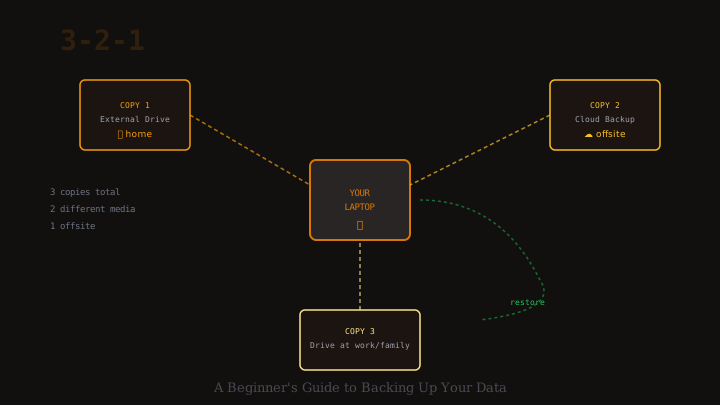
The most widely taught framework for backup strategy is the 3-2-1 rule:
- 3 copies of your data in total (the original plus two backups)
- 2 different storage types (for example, an external drive and a cloud service)
- 1 copy offsite (somewhere physically separate from your home or office)
The logic is defensive. If your home is burgled or burns down, an external drive sitting next to your computer is useless. If a cloud service closes or your account is compromised, a local drive protects you. By distributing copies across different media and locations, you protect against different failure scenarios simultaneously.
For most individuals, a practical 3-2-1 setup might be: the original files on your computer, an automatic backup to an external drive that stays connected, and a second automatic backup to a cloud storage or backup service. Three copies, two types (local drive and cloud), one offsite (the cloud).
What Should You Back Up?
Not everything on your computer needs to be backed up with equal urgency. Operating systems, applications, and games can be re-downloaded and re-installed. What cannot be replaced is your personal data — the files that are unique to you.
Prioritise:
- Documents and work files — spreadsheets, presentations, writings, contracts, financial records.
- Photos and videos — especially ones from events you cannot re-photograph (weddings, family occasions, childhood memories).
- Creative work — illustrations, music projects, code, designs.
- Email archives — if you use a desktop email client that downloads messages locally.
- Browser bookmarks and passwords — if stored locally rather than synced to an account.
- Configuration files — application settings that would take hours to restore (if you know where they live).
On a typical computer, all of this personal data might occupy between 50 GB and a few terabytes. System files that can be re-installed occupy far more but need not be prioritised.
How Often Should You Back Up?
The right backup frequency depends on how much data you can afford to lose. Backup frequency should match your recovery point objective — the maximum age of data you could tolerate losing.
If you have important work files that change daily, a daily backup means you could lose at most one day of work. If you work on files continuously throughout the day, you might want backups every few hours, or a backup system that takes incremental snapshots continuously.
For most home users, a reasonable approach is:
- Automated continuous or daily backups for working documents and photos. Most backup tools can be configured to run automatically whenever your device is on.
- Weekly or monthly full backups to an external drive you store offsite (perhaps at a relative’s home or in a workplace locker).
The key word is automated. Manual backups that depend on you remembering will eventually be skipped during the weeks when things are busiest — which is exactly when you are most likely to have files worth protecting.
Incremental vs Full Backups
A full backup copies everything every time. This is simple and complete but can be slow and storage-intensive for large datasets.
An incremental backup copies only the files that have changed since the last backup. Incremental backups are faster and smaller but more complex to restore from, since you need the full backup plus every incremental layer on top of it.
Most modern backup software handles this complexity automatically, presenting you with a simple “restore to any point in time” interface while managing the incremental layers underneath. Versioning — the ability to restore a file to how it looked yesterday, or last week, before you accidentally overwrote it — is one of the most useful features to look for in a backup system.
Backing Up to External Drives
An external hard drive or SSD connected to your computer is the simplest and most controllable form of local backup. You own the hardware, you know where it is, and access does not depend on an internet connection.
The limitations: external drives can fail (like any hardware), they can be stolen alongside the computer they sit next to, and they only back up when connected and powered on. A drive that lives in a drawer most of the time is a drive that misses most backups. A drive connected all the time is a drive that a ransomware infection can reach directly.
The most resilient use of an external drive is as an offsite backup rotation: keep one drive at home connected and backing up daily, and keep a second drive at a separate location (updating it weekly), rotating between locations periodically.
Backing Up to Cloud Storage
Cloud backup services automatically upload copies of your data to remote servers, providing the offsite backup component of the 3-2-1 rule without requiring you to physically move drives around.
The limitations: initial upload of a large dataset can be slow on a typical home connection; restoring a large dataset can likewise take days over a slow connection. Cloud services may charge monthly fees, may have terms of service that limit data types, and access requires a working internet connection.
One important distinction: cloud sync (such as Dropbox or OneDrive syncing a folder) is not the same as cloud backup. If you delete a file from a synced folder, the deletion propagates to the cloud immediately. A proper backup service retains deleted files and previous versions for a defined retention period, allowing recovery even after accidental deletion.
The Most Important Step: Test Your Backup
Many people have backups that they have never tested. The horror story that circulates in IT departments is the organisation that maintained backups faithfully for years, then discovered at the moment of a crisis that the backups were corrupted and unrestorable.
Test your restore regularly. Once a month or at minimum once a quarter, actually restore a sample of files from your backup — not just confirm that the backup software says it succeeded, but open the files and verify they are intact. For a full-system backup, test whether you could boot and operate from the backup.
The purpose of a backup is to enable recovery. If you have not confirmed that recovery is possible, you do not yet know whether your backup strategy is working.